

Connect BigQuery
Use a BigQuery connection when AI needs to inspect schemas and run read-only SQL against your warehouse. We recommend connecting BigQuery with a Google Cloud service account so access is tied to your organization instead of one person’s Google login.
Before you start
Section titled “Before you start”You need:
- A Google Cloud project with BigQuery enabled.
- Permission to create or manage a Google Cloud service account.
- Permission to grant that service account access to the projects, datasets, or tables AI should query.
- Permission to let the service account create and run BigQuery query jobs.
- A decision about the narrowest BigQuery access AI should have.
Google’s reference docs cover creating service accounts, creating JSON service account keys, and BigQuery IAM roles.
Create the service account
Section titled “Create the service account”- In Google Cloud Console, open IAM & Admin and choose Service Accounts.
- Create a service account for Type, such as
type-bigquery. - Grant the service account only the BigQuery access AI needs.
- Give it BigQuery Job User on the project where queries should run. This lets the service account create and execute BigQuery query jobs.
- Give it read access to the data it should query, usually BigQuery Data Viewer on the target datasets or tables.
- Avoid broad roles like Owner, Editor, or project-wide Data Owner unless AI truly needs that access.
For a simple project-level setup, the role assignment should include BigQuery Job User and BigQuery Data Viewer:
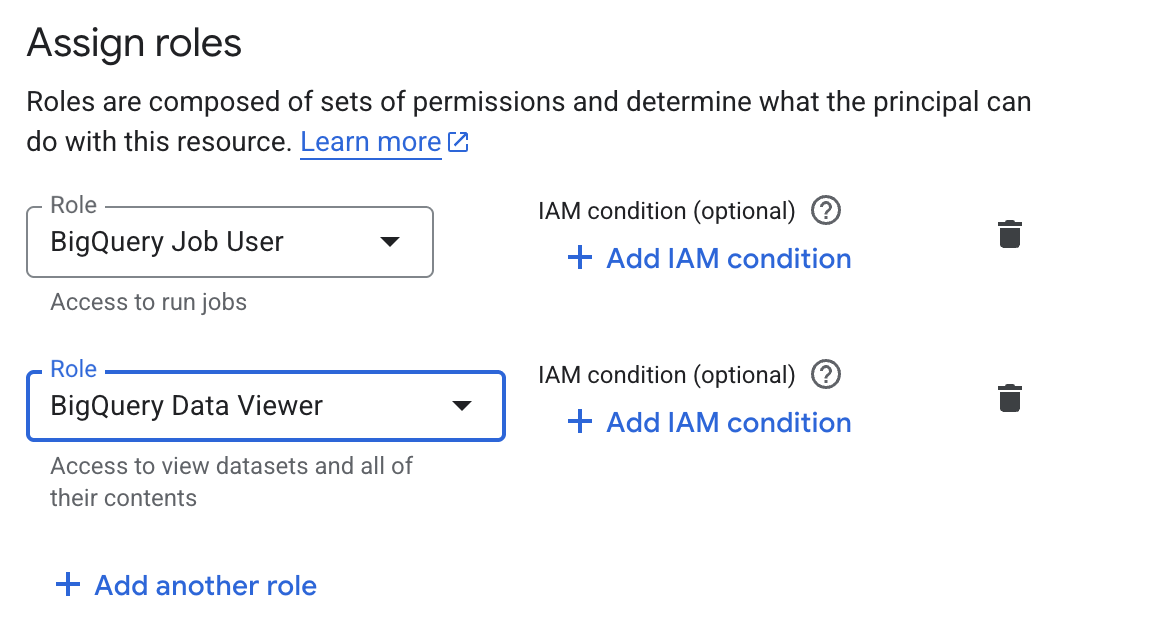
If AI will query datasets across multiple projects, make sure the service account can create jobs in the query project and can read each dataset it needs.
Create the JSON key
Section titled “Create the JSON key”- Open the service account you created.
- Go to Keys.
- Choose Add key and then Create new key.
- Select JSON.
- Download the key file.
Treat the JSON key like a password. Do not paste it into Space instructions, skills, docs, or thread messages.
Connect BigQuery in Type
Section titled “Connect BigQuery in Type”- Open the Space that should use BigQuery.
- Open Space settings → Connections.
- Search for Google BigQuery.
- Choose Connect with service account JSON.
- Paste the full JSON key contents into Service account JSON.
- Connect and keep BigQuery assigned only to the Spaces that need it.
The Type connection form should look like this:
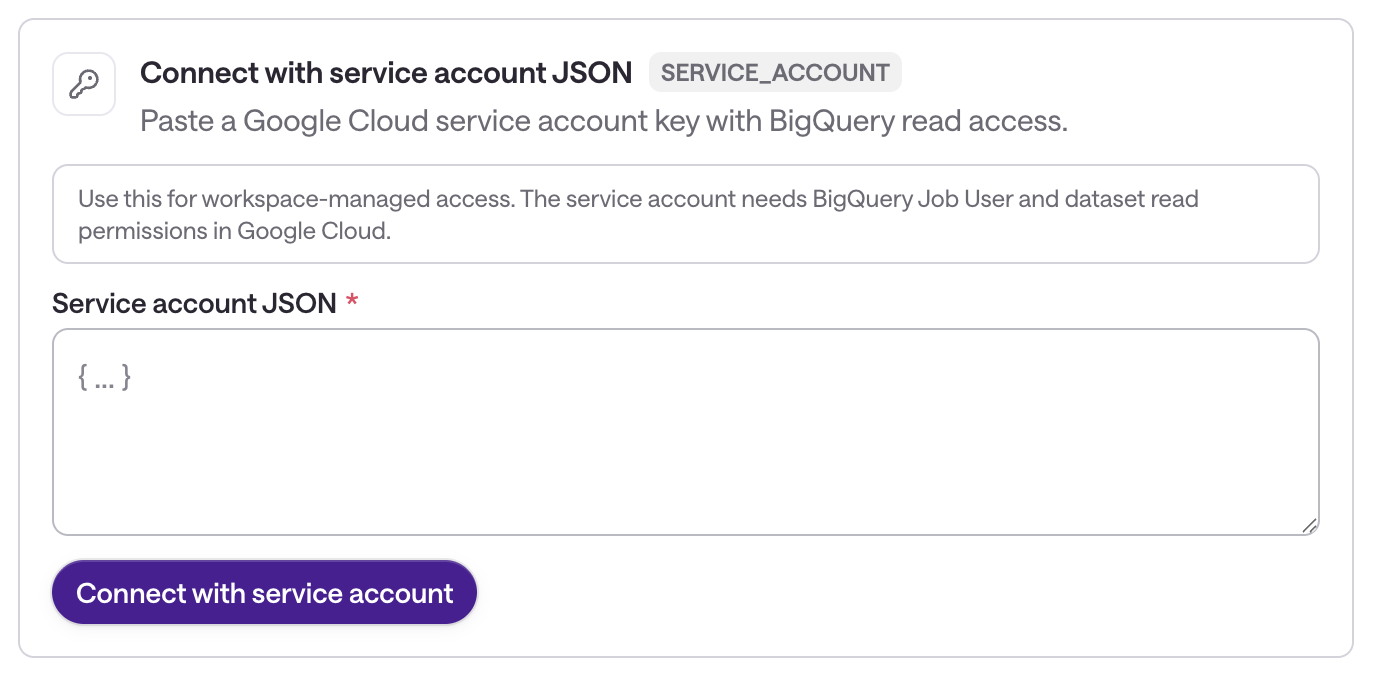
Type stores the credential securely and uses it server-side when AI needs to inspect BigQuery metadata or run a bounded query.
Verify access
Section titled “Verify access”After connecting, ask AI to list accessible BigQuery projects, datasets, or tables. Then run a small read-only query against a known table, using a partition filter when the table is partitioned. A LIMIT only restricts returned rows; it may still scan a large table and incur charges.
Troubleshooting
Section titled “Troubleshooting”- Invalid service account JSON: Paste the full downloaded JSON file contents, including
client_email,private_key, and the surrounding braces. - Permission denied: Confirm the service account can create and execute BigQuery query jobs with BigQuery Job User on the query project, and that it has read access to the dataset or table.
- Dataset or table not found: Confirm AI is using the right project ID, dataset ID, and fully qualified table name.
- Billing or API errors: Confirm BigQuery is enabled and the query project can run BigQuery jobs.
- Compromised key: Disable or delete the key in Google Cloud, create a new JSON key, and reconnect BigQuery in Type.